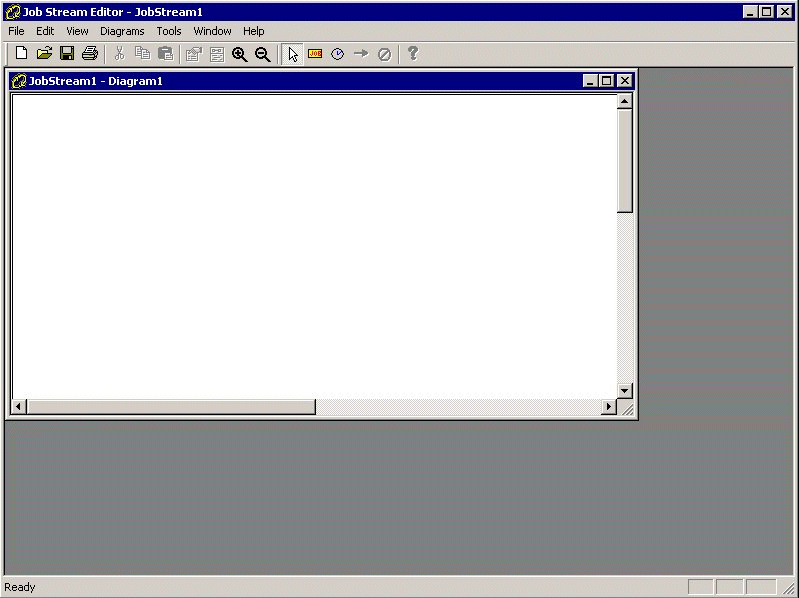
Figure 5-1: The Job Stream Editor window
Job stream source files are represented by XML documents. Revolve provides you with a graphical editor that can be used to create and maintain these job stream source files.
A "job stream" is a collection of related jobs that are scheduled and run as a group. For example, the daily direct deposit account processing in a bank consists of several separate jobs.
The first type of object that a job stream contains is a "job". It is common for one job within a job stream to use the output from another job. This restricts the order in which the jobs in a job stream can be executed. The second type of object that a job stream contains is a "dependency". A dependency simply indicates that one of the jobs (the predecessor) must run before the next job (the successor). Jobs and dependencies are the most important elements of a job stream.
Two other types of object are supported: "events" and "exclusions". Sometimes a job within a job stream cannot be run until something happens that is outside the scope of the job stream itself. For example, a job to update the values of securities in a stock portfolio would have to wait until an external pricing feed was received. These external dependencies are called events. The final type of object is a relationship called exclusion. If two jobs are related by exclusion, it means that either of the jobs may run first, but the two jobs cannot be run at the same time.
A single application may include more than one job stream. For example, an order processing application might have a nightly job stream and a weekly job stream. An application can include any number of job streams and a particular job can appear in more than one job stream.
The Job Stream Editor is a separate executable program distributed with Revolve 6.0 and later. The program is called jobstreamedit.exe. If you use the default installation, it will be located in the bin directory. You run the Job Stream Editor by double-clicking on its filename.
When you start the Job Stream Editor, the main window is displayed. It contains an empty job stream diagram.
Figure 5-1: The Job Stream Editor window
Add information to this diagram by either selecting a tool from the tool bar or selecting an option from the Tools menu. The right hand part of the tool bar contains buttons for adding objects to the diagram.

Figure 5-2: The Tool Bar
The first object to add to a job stream diagram is a job. To add a new job:
 .
.
If you click in the drawing area without releasing the left mouse button, you can drag the job symbol to any position. Release the left mouse button when the symbol is positioned where you want it.
Figure 5-3 shows how the diagram might look after adding some jobs.

Figure 5-3: Job Stream Diagram with jobs
added
The hatching around Job2 means that Job2 is selected, by clicking on it
with the selection tool
 .
.
As jobs are added, they are assigned a name in the form of “Job” followed by a sequentially assigned number. You can change the name and other properties of a job by double-clicking on the job symbol. The Job Stream Editor will display the Job Properties dialog.
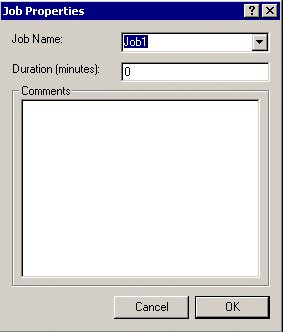
Figure 5-4: Job Properties dialog
The Job Name field on the Job Properties dialog is a combo box. The Job Stream Editor maintains a drop down list of jobs that you have defined in the job stream but which do not currently appear on the diagram you are editing.
Note: Values entered in the Duration (minutes) and Comments fields will be stored but are not otherwise used by Revolve.
You can delete a job or other diagram object by selecting it and then pressing the Delete key. When you delete an object you see the following dialog.

Figure 5-5: JobStreamEdit dialog
Press Yes to delete the job from the diagram and the job stream. If you press No, the symbol is removed from the diagram but the information about the job is retained.
Once you have added jobs to the diagram, you can add dependencies. To add a dependency:
 .
.
A red circle appears in the middle of the predecessor job and a rubber band line is drawn from this point to the mouse location.
The Job Stream Editor draws an arrow from the predecessor to the successor and a dependency is established.
Figure 5-6 shows how the screen looks after renaming the jobs and adding their dependencies. The arrow head is on the successor job.
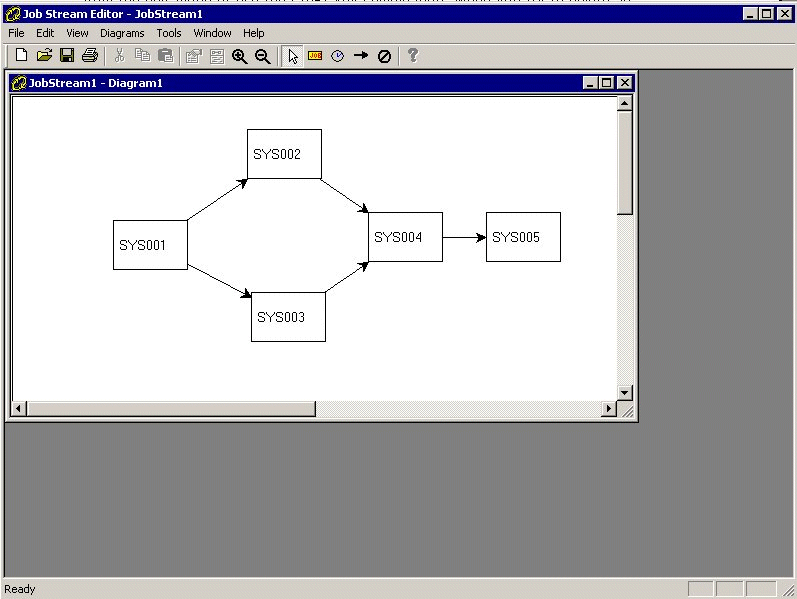
Figure 5-6: Job Stream Diagram with dependencies
added
This diagram shows that job SYS001 runs first. SYS002 and SYS003 can run concurrently. SYS004 can only start after SYS002 and SYS003 have both completed. Finally, SYS005 can only start after SYS004 runs.
You can also draw multi-segment connectors (dependencies or exclusions). Click on the predecessor task as usual. If you then click on a blank area of the drawing, a bend point will appear. You can place as many bend points as you wish. Complete the connector by clicking on the successor job or event.
You can make several other changes to a diagram object, in addition to changing its properties.
Move job or event objects using the selection tool,
. Click on
the object you want to move and drag and drop the symbol to its new location.
Use the selection tool,
to resize
job or event objects. Drag the control handles of a selected object to resize
it.
Detach a dependency or exclusion from one object and reattach it to another. First click on the dependency to select it, then drag the red control point from the end of the connector you want to move to the object you want to connect to and release the mouse button.
Re-route multi-segment connectors by first selecting them and then dragging the bend points to a new location.
The Job Stream Editor is a standard Multiple Document Interface (MDI) Windows application. You can view and edit more than one Job Stream diagram at a time. This section contains more information about the relationship between applications, job streams, and diagrams.
The information contained within a Revolve database represents a single application. For example, this might be a direct deposit account system in a bank or a customer order servicing system in a manufacturing company. A single application can have more than one job stream associated with it, for example, a daily stream, a weekly stream, and an annual stream. The Job Stream Editor stores all the information about one job stream in a single XML document. A job stream document contains information about one or more job stream diagrams and their associated jobs, events, dependencies, and exclusions.
A job stream diagram is a view of all or part of the information about a job stream. In Figure 5-6, we created a single diagram that contained all the information about everything in the job stream. You can also create multiple diagrams that contain information about a single job stream. This can be useful for complex job streams. You can use separate diagrams to emphasize different aspects or parts of a job stream.
The information about each job stream is stored in a separate XML document with a .str extension. The Job Stream Editor allows you to edit one job stream at a time. The facilities for managing job stream files are located on the Files menu.
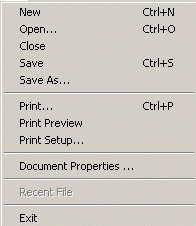
Figure 5-7: Files Menu
Click New to create a new job stream. Click Open to open an existing .str file. To specify a descriptive name and provide comments for an entire job stream, click Document Properties.
By default, the Job Stream Editor only creates one diagram for a job stream. However, you can create more than one diagram for a single job stream.
Use the Diagrams menu to create additional diagrams.
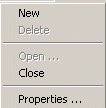
Figure 5-8: Diagrams Menu
Click New to create a new diagram. Selecting this option opens a new child window within the Job Stream Editor. For example, if you start with following diagram:
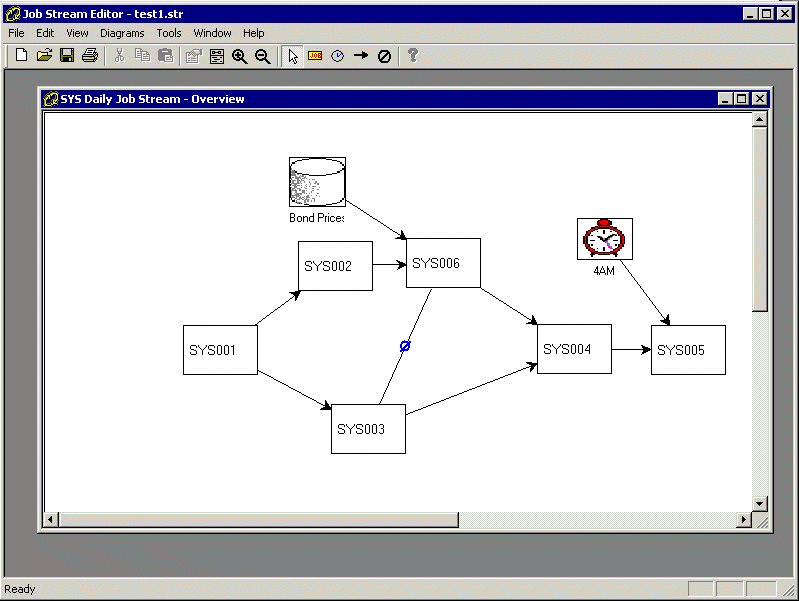
Figure 5-9: SYS Daily Job Stream Diagram
then select New from the Diagrams menu, The Job Stream Editor displays a new, empty diagram window. Now select the Job tool and click in the empty diagram window. The Create Job dialog is displayed.

Figure 5-10: Create Job dialog
The Create Job dialog indicates that there are jobs defined in the job stream that do not currently appear in the diagram being editing. You can add a new job to the job stream or you can select a job that already appears in another diagram. A job can exist in more than one diagram.
When a particular job appears in more than one diagram, the symbols refer to the same underlying object. This means that if the name of a job changes in one diagram, it will affect all diagrams in which the job appears.
Copyright © 2002 Micro Focus International Limited. All rights reserved.
This document and the proprietary marks and names
used herein are protected by international law.